

Account and settings
Where to find the settings of your workspace and of your own account, what each page holds, and which guide to read for each task.
Two pages hold the things that you can set in Prescient AI. Settings holds the settings of your workspace: the display currency, the members, the API keys, and the billing. Account shows your own profile and your cookie settings.
The capture shows the Settings page on the Workspace tab.
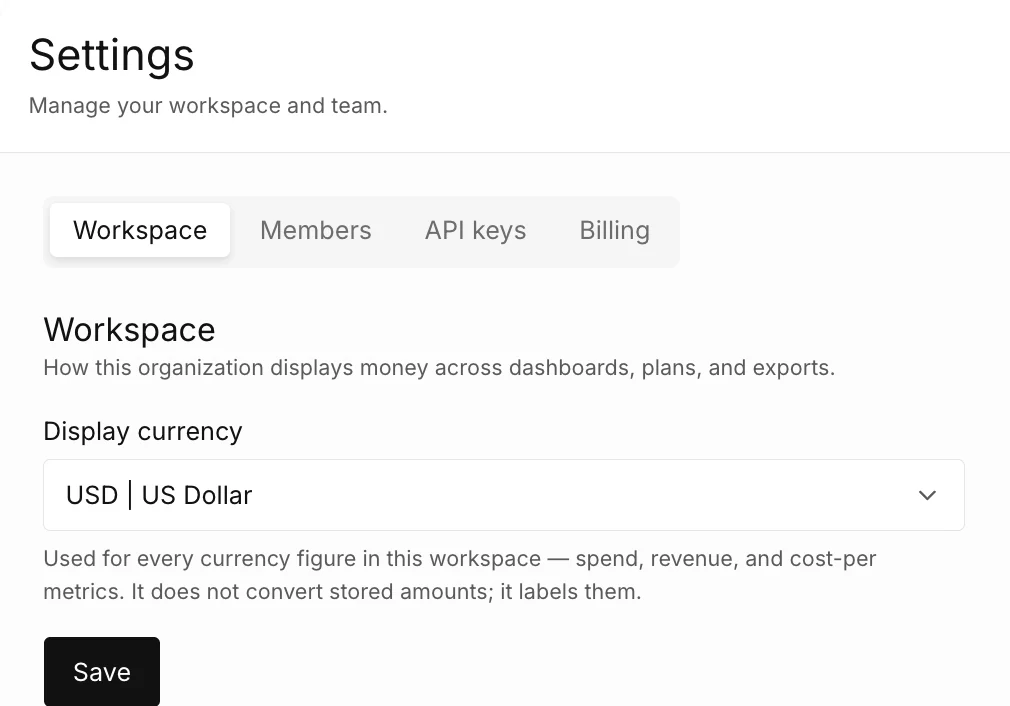
A workspace holds the data, the models, and the members of one organization in Prescient AI.
Where are the settings of the workspace?
Section titled “Where are the settings of the workspace?”Select the gear icon in the top bar. The Settings page opens.
The page has up to four tabs. Your role sets which tabs you see.
| Tab | Who sees it | What it holds |
|---|---|---|
| Workspace | Everyone | The display currency of the workspace. Only an Admin can change it. |
| Members | Everyone | The people who have access to the workspace. Only an Admin can invite a person, change a role, or remove a person. |
| API keys | Admin | The keys that authenticate requests to the Prescient GraphQL API. |
| Billing | Admin | The status of the subscription and the button that opens the billing portal. |
For the full list of what each role can do, see Roles and members.
Where is your own account?
Section titled “Where is your own account?”Select your avatar in the top bar. The menu shows your name and your email, with two items.
| Menu item | What it does |
|---|---|
| Account | Opens the Account page. |
| Log out | Signs you out of Prescient AI. |
The Account page has two cards. Profile shows your name and your email. Cookie settings shows whether analytics cookies are on in this browser.
What can you not change in the product?
Section titled “What can you not change in the product?”Some settings that you could expect are not in Settings or Account.
- Your name and your email. The Account page shows them, and you cannot edit them there. The page says: To change your name or email, contact your workspace admin. The Settings page has no control with which an Admin can change the name or the email of a member.
- Your password. You set and reset a password from the sign-in page. See Sign in to Prescient AI.
- A time zone or a week start day. The product has no setting for them.
- Which emails you get. The product has no setting that turns an email on or off. See Emails from Prescient AI.
The product currently tells you about changes that need your attention by email.
Which guide do you need?
Section titled “Which guide do you need?”- Sign in to Prescient AI: use a sign-in code or a password, and set or reset a password.
- Invite and manage members: invite a teammate, choose a role, change a role, send an invitation again, and remove a person.
- Change the display currency: choose the currency that labels the money figures of the workspace.
- Create and revoke an API key: make a key, copy it, and stop a key.
- Manage billing: open the billing portal and read the subscription status.
- Change your cookie settings: allow or block analytics cookies in a browser.
- Switch to a different workspace: move between the workspaces that you are a member of.
For exact values, see Roles and members, Sign-in and password rules, Settings and Account reference, and Emails from Prescient AI.
For the ideas behind access, see Workspaces and organizations, Subscriptions and access, and Single sign-on.
The settings in this area apply to each product area. For the first screen of the product, see Prescient AI. For saved conversations and who can read them, see Library.
Reference
Section titled “Reference”The reference pages of the settings and the account are in the Reference tab. Each page lists the exact labels, options, limits, and messages of one screen.
- Settings and Account reference: the Settings page, its tabs, the Account page, and the cookie settings.
- Roles and members: the two roles, the actions of each role, and the Members table.
- Sign-in and password rules: codes, links, password requirements, and the messages of the sign-in page.
- Emails from Prescient AI: each email that the product sends, with its subject line and its expiry.
For the meaning of a term, see the Glossary.