

Create and revoke an API key
Steps for an Admin to make an API key with an optional end date and channel scope, copy the key the one time it shows, and stop a key.
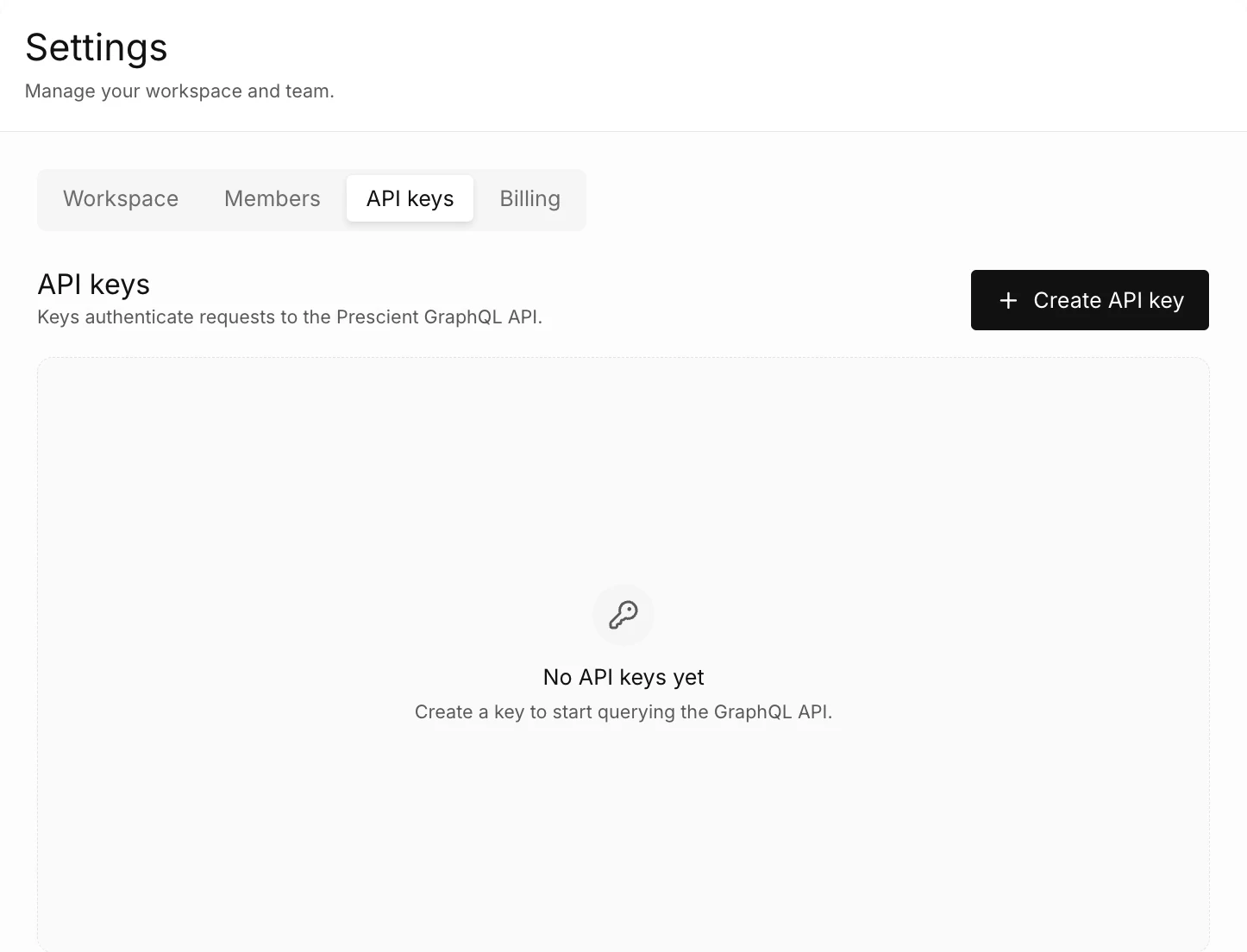
An API key authenticates requests to the Prescient GraphQL API. You create and revoke keys on the API keys tab of the Settings page. Only an Admin sees this tab. For the API itself, see API overview.
The capture shows the API keys tab before a key is created.
How do you create an API key?
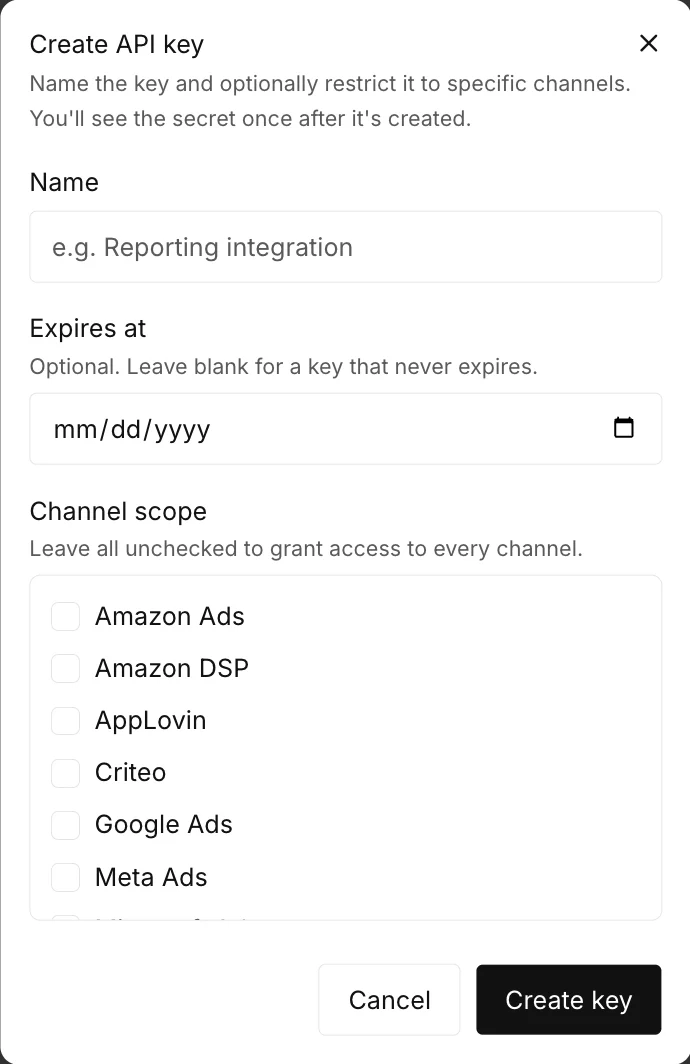
Section titled “How do you create an API key?”The capture shows the Create API key dialog.
-
Select the gear icon in the top bar, then select API keys.
-
Select Create API key.
-
Type a Name that tells you what the key is for.
-
Optional: set a date in Expires at. If you leave the field empty, the key never expires.
-
Optional: select channels in Channel scope. If you select no channel, the key has access to each channel.
-
Select Create key.
The Copy your API key now dialog opens with the full key.
-
Copy the key and store it in a safe place.
If the browser refuses the copy, the product tells you to select the key and copy it by hand.
-
Select I’ve saved it.
The new key appears in the table. The Key column shows only the first 8 characters.
How do you revoke an API key?
Section titled “How do you revoke an API key?”-
Find the key in the table and select Revoke.
-
Read the confirmation, then select Revoke key.
The product shows API key revoked. The key stops working immediately, and each integration that uses the key loses access. You cannot undo a revoke.
How do you know if a key is in use?
Section titled “How do you know if a key is in use?”Read the Last used column. The column shows the time since the last request with the key, or Never.
The Expires column shows the end date of a key, Never, or the Expired badge.