

Create and run a plan
Use the New plan wizard to build a Media Forecaster plan, check the plan for problems, and run the plan.
To create a plan, select New plan on the Media Forecaster page and complete the five steps of the wizard: Timeline, Goal, Budget, Media, and Review & run. The plan then runs in the background and appears in your plans list.
Before you begin
Section titled “Before you begin”Check these two conditions before you start a plan.
- Your account has one or more active models. Without an active model, the Goal step has no goals to select.
- The campaigns that you want to plan had spend in the reference period. A campaign needs spend of 100 or more, in the display currency of your workspace, to appear in the plan.
Start a plan
Section titled “Start a plan”-
Select Media Forecaster in the Marketing group of the sidebar.
-
Select New plan.
The wizard opens on the Timeline step. The rail shows the five steps and a summary of each completed step.
Step 1: Set the timeline
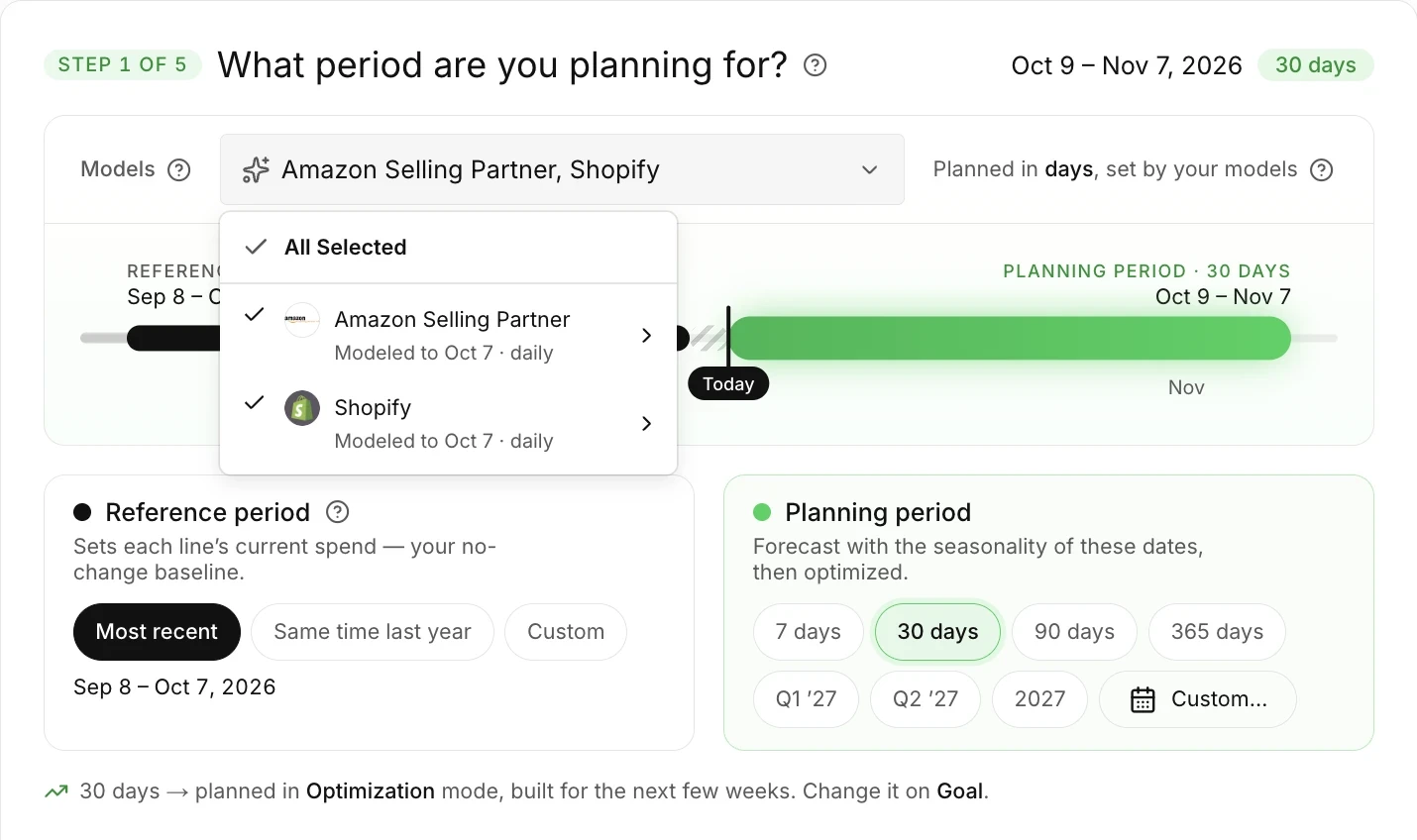
Section titled “Step 1: Set the timeline”The Timeline step sets the models, the reference period, and the planning period. The capture shows the step with the Models menu open.
-
In Models, keep the selected models or choose different models.
Media Forecaster selects the default model for each channel. A plan needs one or more models.
-
In Reference period, select Most recent, Same time last year, or Custom.
The reference period sets which media is eligible and the current spend of each row.
-
In Planning period, select a length or a quarter. To choose exact dates, select Custom…, set Start and End, and select Apply.
The planning period is the period that the plan allocates budget across. The start date can be as many as 14 days before today, and the end date must be today or later. The length options start today. On a plan in weeks, they start at the next week boundary.
-
Select Continue.
On the Timeline, Goal, and Budget steps, you can select Skip to review to go to Review & run without the steps between. The steps that you skip keep their default settings.
Step 2: Choose the goal
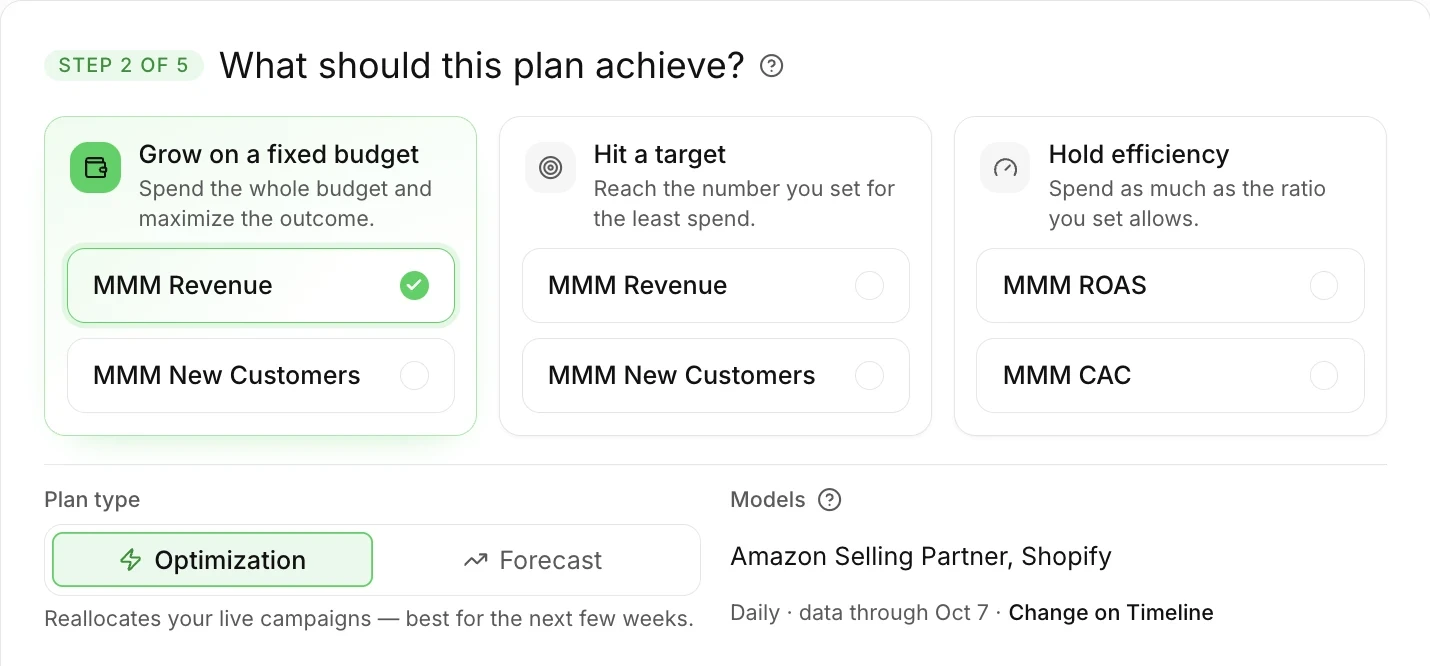
Section titled “Step 2: Choose the goal”The Goal step sets the one goal of the plan and the plan type.
-
Select a goal card.
The goal cards are grouped into families: Grow on a fixed budget, Hit a target, and Hold efficiency. The goals in each family depend on the active models of your account.
-
If the goal needs a target, enter the target.
Media Forecaster suggests a target that is 10% better than the forecast with no changes. The target is the total modeled figure for the planning period. The target is not growth on top of the current figure.
-
In Plan type, select Optimization or Forecast.
Until you open the Goal step, Media Forecaster sets the plan type from the length of the planning period: Forecast for 42 days or more, and Optimization for a shorter period.
-
Select Continue.
| Plan type | When to use it |
|---|---|
| Optimization | Reallocates budget across your live campaigns. Best for the next few weeks. |
| Forecast | Plans on your channels and tactics. Best for longer horizons. |
If the planning period is short or long for the plan type, Media Forecaster shows a message with a Switch button. Select Switch to change the plan type, or keep your selection. After Switch, a confirmation shows with Undo. Undo restores the earlier plan type and the settings that the switch changed. Undo goes away when you change a setting.
Step 3: Set the budget
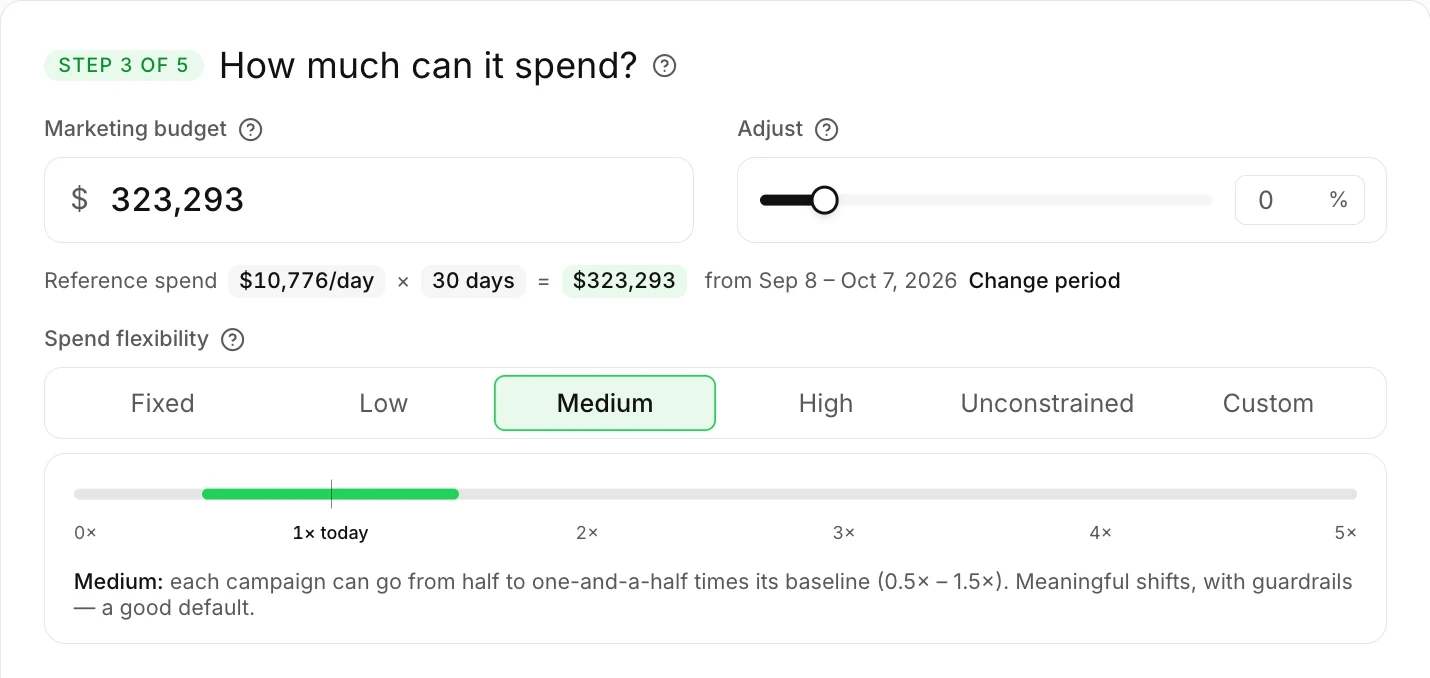
Section titled “Step 3: Set the budget”The Budget step sets how much the plan can spend and how far the optimizer can move each row.
-
Check the budget amount.
The budget starts at your reference-period spend, scaled to the length of the planning period.
-
To change the budget, type an amount, or use Adjust to move the budget up or down by a percentage.
Select Reset to return to the baseline amount.
-
If the goal is in the Hit a target family, select Set a ceiling or Solve for it.
With Set a ceiling, you enter the maximum budget. With Solve for it, your models find the spend that the target needs. A goal in the Hold efficiency family has a target and does not have this choice. Solve for it is available on the two plan types. On a Forecast plan, the models solve for the spend over the dates that you select.
-
In Spend flexibility, select how far the optimizer can move each row from its baseline.
-
Select Continue.
| Spend flexibility | Band | Effect |
|---|---|---|
| Fixed | 1× to 1× | Each row keeps its share of the current mix. Only the total changes with the budget. |
| Low | 0.8× to 1.2× | Each row stays within 20% of its baseline. |
| Medium | 0.5× to 1.5× | Each row can go from half of its baseline to one and a half times its baseline. This option is the default. |
| High | 0× to 2× | Each row can be cut to zero or doubled. |
| Unconstrained | 0× to 5× | Each row can go from zero to five times its baseline. Above 2×, the plan relies on extrapolated curves. |
| Custom | You set the minimum and the maximum | You set the band. The scale runs from 0× to 5×. |
A band is a multiple of the baseline of each row. For example, 0.5× to 1.5× lets a row go from half of its baseline to one and a half times its baseline. Spend flexibility does not change the total budget.
Step 4: Select the media
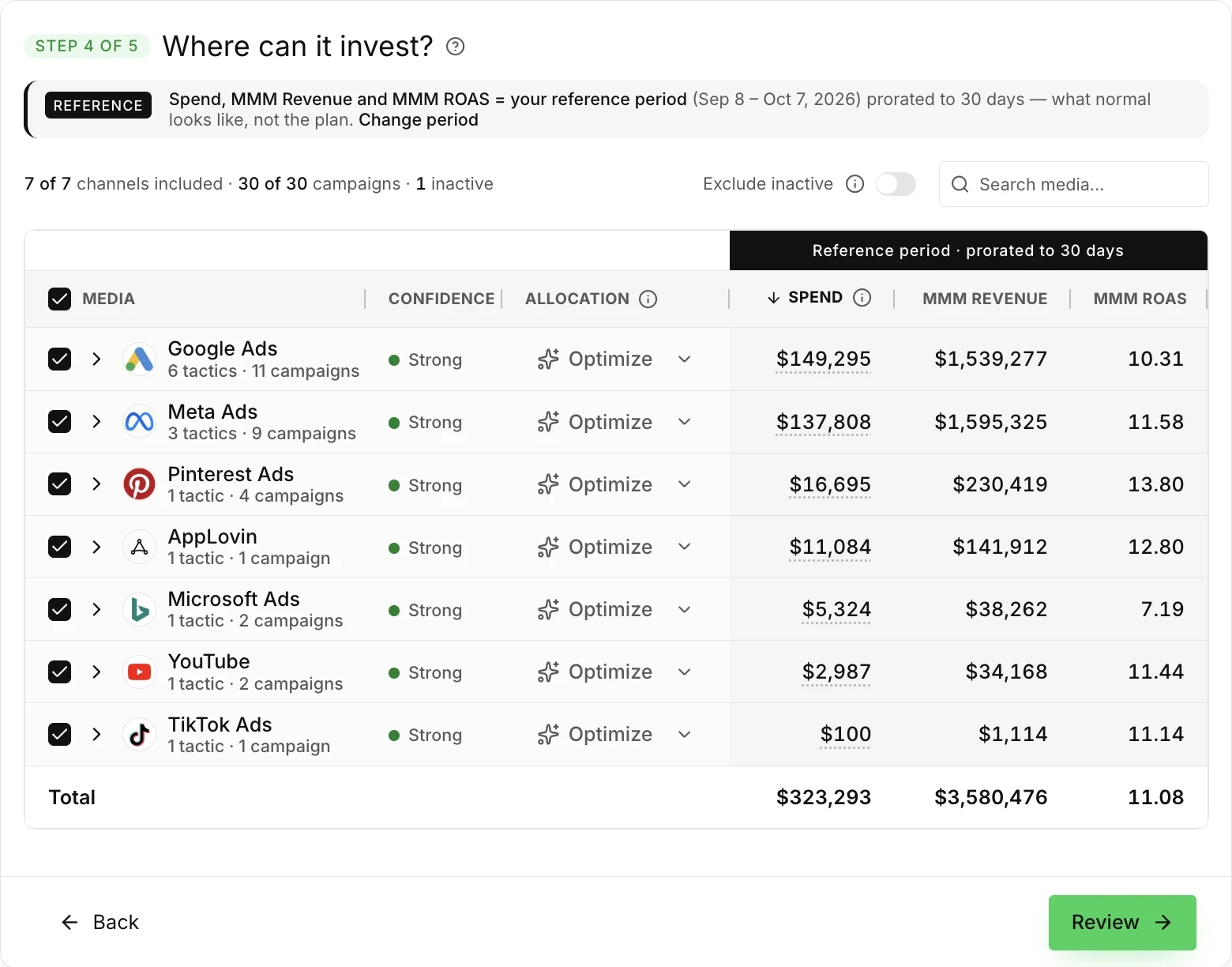
Section titled “Step 4: Select the media”The Media step sets which channels, tactics, and campaigns the plan can use. On an Optimization plan, the table nests rows as channel, then tactic, then campaign. On a Forecast plan, the table has no campaign rows. The table lists channels, with their tactics when your account has tactics for the channel.
-
Select the rows to include in the plan. Clear a row to leave the row out of the plan.
A plan needs one or more rows.
-
Optional: in the Allocation column, set an allocation type for a row.
Enter the limit as a currency amount or as a percentage of the baseline of the row.
-
Optional: turn on Exclude inactive to leave out each campaign that had no spend in the last 7 days of the reference period.
Exclude inactive is off by default. The switch appears only when activity data exists.
-
Select Review.
The Allocation menu of a row has four allocation types.
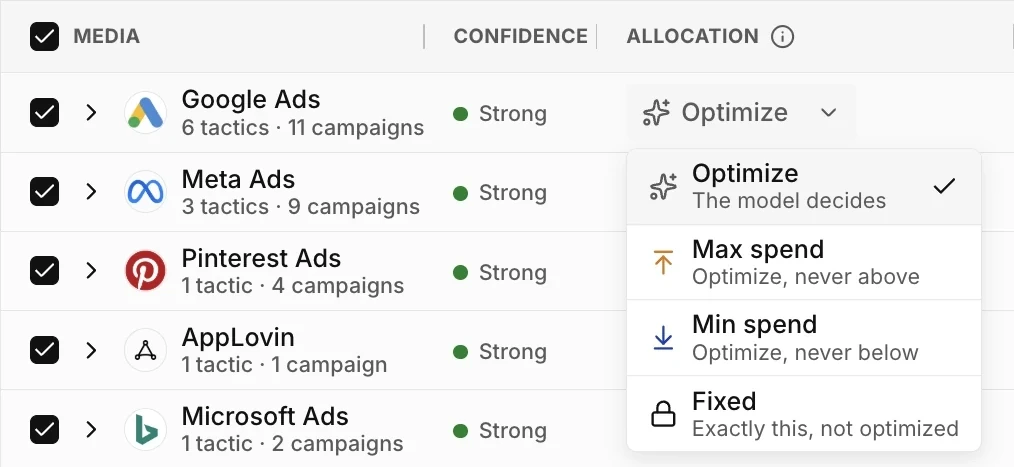
| Allocation type | Effect |
|---|---|
| Optimize | The optimizer allocates the row freely. |
| Max spend | The optimizer allocates the row but stays at or below the ceiling that you set. |
| Min spend | The optimizer allocates the row but stays at or above the floor that you set. |
| Fixed | The row gets exactly the amount that you set. The optimizer does not change the row. |
Step 5: Review and run the plan
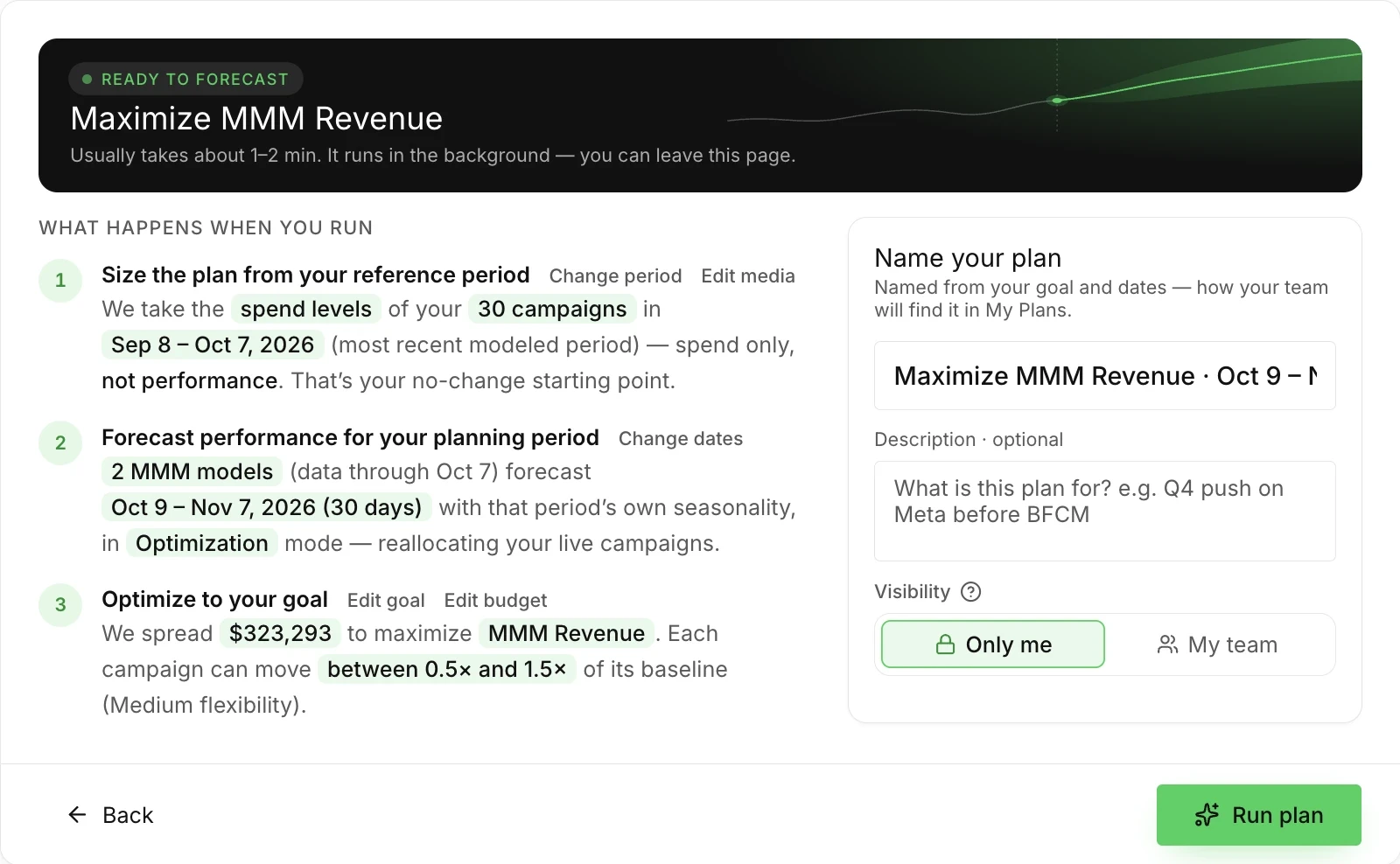
Section titled “Step 5: Review and run the plan”The Review & run step shows what the plan will do and lets you name and share the plan. The status of the plan is at the top of the step. Below the status, the step lists the three stages of a run and has the fields for the name and the visibility. The Run plan button is at the bottom of the step.
-
Check the status at the top of the step.
Ready to forecast means that the plan can run. If the status shows steps to finish, select Fix next to the step that has an issue.
-
Check the three stages under What happens when you run. To change a setting, select the link next to the stage, for example Edit budget or Edit media.
The first stage counts the campaigns in the plan, on a Forecast plan also.
-
In Name your plan, keep the automatic name or type a name.
Media Forecaster names the plan from the goal and the dates until you type a name.
-
Optional: add a description.
-
In Visibility, select Only me or My team.
Only me is the default. With My team, everyone on your team can see the plan.
-
Select Run plan.
The plan is queued and runs in the background. The plan page shows the elapsed time and an estimate of the duration. You can leave the page. The plan appears in your plans list with the status Ready when the plan finishes.
How long does a plan take?
Section titled “How long does a plan take?”The Review & run step and the plan page show an estimate of the duration. On the Review & run step, the estimate for a Forecast plan with the default estimate reads Usually takes about 1–2 min.
When your account has three or more similar past plans, the estimate comes from the durations of those plans. A similar plan has the same plan type and from half to double the number of campaigns. With fewer similar plans, Media Forecaster shows a default estimate. The default estimate for an Optimization plan grows with the number of campaigns.
| Plan | Estimated duration | What it does |
|---|---|---|
| Optimization, up to 50 campaigns | about 1–3 min | |
| Optimization, 51 to 150 campaigns | about 2–8 min | |
| Optimization, 151 to 300 campaigns | about 5–15 min | |
| Optimization, more than 300 campaigns | about 10–30 min | |
| Forecast, any size | about 1–2 min | The default range is 30 seconds to 2 minutes. The product rounds the range to whole minutes, with a minimum of 1 minute. |
Next steps
Section titled “Next steps”- Read plan results when the status of the plan is Ready.
- Fix a failed plan if the status of the plan is Failed.
- See Plan settings and Media and run settings for every option and limit.