

Export Attribution data
How to download CSV files from the Performance Table, the Attribution Over Time chart, and the Base and Halo Flows section.
Three sections of Attribution have an Export button. Each export downloads a CSV file for the selected period and the active filters.
How do you export the Performance Table?
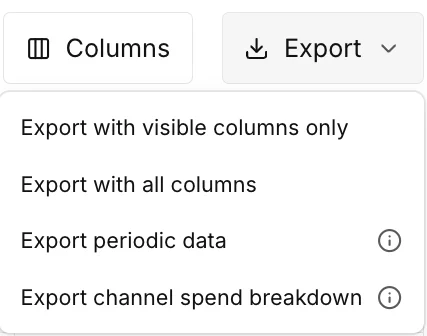
Section titled “How do you export the Performance Table?”The Export menu of the Performance Table has four options.
-
Set the tab, the columns, and the filters of the Performance Table.
-
Select Export above the table.
-
Select one of the four export options.
-
For Export periodic data or Export channel spend breakdown, select Daily, Weekly, or Monthly, then select Export.
The menu has four options. Two options export the table as it is. Two options export a breakdown by period.
| Option | What the file contains |
|---|---|
| Export with visible columns only | A CSV of the table with the columns that are on screen, except Marginal {efficiency}. No export contains that column. |
| Export with all columns | A CSV of the table with every available column. |
| Export periodic data | A CSV with the full periodic breakdown for the current view. You select the period first. |
| Export channel spend breakdown | A CSV with the full periodic spend breakdown for each channel. You select the period first. |
A word in braces stands for a value from your account or your plan.
The two table exports contain each row that matches the filters, on every page of the table, with the Total row first. With Compare on, each metric also has the figure of the comparison period and the change.
How do you export the chart data?
Section titled “How do you export the chart data?”The Attribution Over Time export contains only the metric that is selected on screen.
-
In Attribution Over Time, select Breakdown.
-
Select the metric that you want to export.
-
Select Export, then select Export by Channel, Export by Tactic, or Export by Revenue Source.
The menu shows only the options that the metric supports.
How do you export the Base and Halo flows?
Section titled “How do you export the Base and Halo flows?”-
In Base & Halo Flows, select All Flows, Base Only, or Halo Only.
-
Select Export.
The file follows the flow filter. The file has a Total row and one row for each channel, with the spend, the Base and Halo amounts, the total modeled outcome, and the modeled efficiency. The file is the same for each grouping tab.