

Compare two periods
How to turn on Compare on the Attribution page, select the earlier period, and show each change as a percentage or an amount.
Compare sets the selected period against an earlier period. With Compare on, the summary cards, the chart, the table, and the flows show the change between the two periods. Compare is off when you open the page.
How do you turn on a comparison?
Section titled “How do you turn on a comparison?”The Compare menu in the filter bar has a switch and a list of earlier periods.
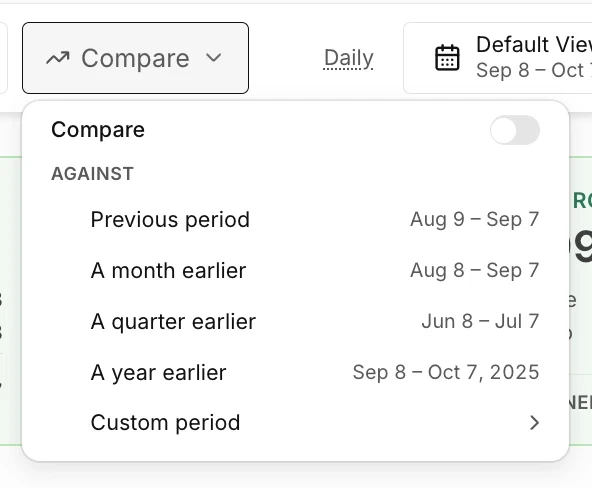
-
Set the date range that you want to study.
-
Select Compare in the filter bar.
-
Under Against, select a comparison period.
The selection turns the comparison on. Each period in the list shows its dates, except Custom period before you set its start. The first selection is Previous period.
-
Under Show change as, select % or Amount.
The first selection is %.
The button in the filter bar then names the comparison period, for example vs Previous.
Which comparison periods can you select?
Section titled “Which comparison periods can you select?”| Period | Dates that the period covers |
|---|---|
| Previous period | The period of the same length that ends the day before the selected period starts. |
| A month earlier | The selected period moved back 1 month. With weekly granularity, the period moves back 4 weeks. |
| A quarter earlier | The selected period moved back 3 months. With weekly granularity, the period moves back 13 weeks. |
| A year earlier | The selected period moved back 12 months. With weekly granularity, the period moves back 52 weeks. |
| Custom period | A period of the same length that starts on a day that you select. |
The month, quarter, and year options move your selected period back in time. These options do not select a calendar month, quarter, or year.
How do you set a custom period?
Section titled “How do you set a custom period?”-
Select Custom period under Against.
-
Select the start day on the calendar.
The custom period has the same length as your selected period, so you select only the start.
-
Select Custom period at the top of the calendar to return to the list.
How do you turn off the comparison?
Section titled “How do you turn off the comparison?”Select the button in the filter bar and turn off the Compare switch. The changes disappear from each section.
Compare also returns to off when you load the page again.