

Build the recommended plan
How to turn the daily recommendation into a Media Forecaster plan in the chat, change its settings, run it, and read the results.
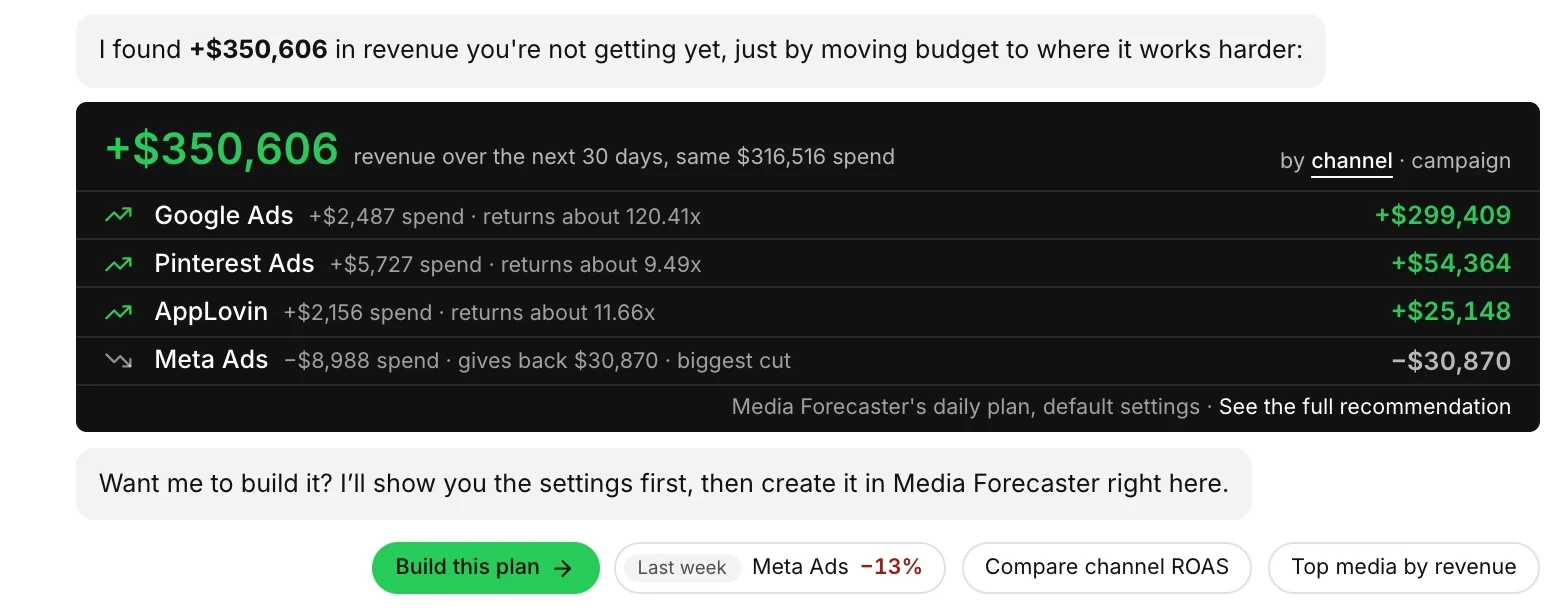
The recommendation card on the Prescient AI screen is a summary of a plan that Media Forecaster ran with default settings. You can open that plan in the chat, change it, and run your own version. Nothing is created in Media Forecaster until you select Run plan.
The capture shows the daily recommendation and the Build this plan pill.
Before you start
Section titled “Before you start”- The screen must show a recommendation card. The card shows only when the daily plan found a gain.
- You can build the recommendation one time in each chat. To build it again, start a new chat.
How do you build and run the plan?
Section titled “How do you build and run the plan?”-
On the Prescient AI screen, select Build this plan.
The chat adds a plan card with one sentence that describes the plan. You cannot send a message until the card is there. While the card loads your channels and campaigns, the run button reads Loading your media.
-
Read the sentence.
The sentence follows the order of the New plan form. It gives the models, the reference period, the planning period, the plan type, the goal, the budget, the spend flexibility, and the media in the plan.
If the budget is far from your recent spend, or the target is far above the outcome with no change, a note below the sentence says so. The plan can still run.
-
To change a setting, select an underlined choice in the sentence.
Each choice opens the matching part of the Media Forecaster form. The media choice opens the full form at its Media step. After a change, the card shows Changed from the recommendation. To undo each change, select Back to the recommendation.
-
To see each setting at once, select Show all settings.
The card shows the full Media Forecaster form. Select Hide settings to return to the sentence.
-
Select Run plan.
Media Forecaster creates the plan and starts the run. A run card shows the name of the plan, its settings, and its status.
-
Wait for the status Ready.
You can continue the chat or leave the page while the plan runs. The card shows when the run started and how long a run of this kind takes. When the plan is ready, the results replace the run card.
Which settings can you change in the sentence?
Section titled “Which settings can you change in the sentence?”You can change the models, the reference period, the planning period, the plan type, the goal, the budget, the spend flexibility, and the media. For what each one sets, see Plan in the chat.
Each setting works as it does in Media Forecaster. For the options and limits of each one, see Plan settings.
By default the plan type follows the planning period. A period of 42 days or more gives Forecast, and a shorter period gives Optimization. A plan type that you ask for in the chat is kept.
What does the run card show?
Section titled “What does the run card show?”| Status | What it means |
|---|---|
| Queued in Media Forecaster | The plan waits to start. |
| Optimizing in Media Forecaster | An Optimization plan is running. The card also shows when the run started, and a line that reads Usually {time} with the time that a run of this kind takes. |
| Forecasting in Media Forecaster | A Forecast plan is running. The card shows the same two lines as for an Optimization plan. |
| Still optimizing — taking longer than usual | The run is longer than the usual time for a plan of this kind. For a Forecast plan the status reads Still forecasting — taking longer than usual. The plan continues to run if you leave the page. |
| This plan failed. Fix its settings and run it again in Media Forecaster. | The plan failed. Select Fix in Media Forecaster to open the plan. |
| Ready | The plan is complete. For a plan from the recommendation, the results replace the run card. For a plan that Prescient AI proposed, select View results. While the results load, the status reads Ready · loading the results…. |
A word in braces stands for a value from your account or your plan.
The run card has buttons to see the results, to continue in Media Forecaster, and to save the chat as a project. Continue in Media Forecaster opens the page of the plan, and you leave the chat. If the plan fails, that button reads Fix in Media Forecaster, and the card has no button to save the chat as a project. See Fix a failed plan.
If the results do not load, the card says so. Select Try again to load them again. For each button and message, see Plan in the chat.
What can you do when the plan is ready?
Section titled “What can you do when the plan is ready?”- Read the results. The chat shows one card with a headline, two or three figures, the largest moves of budget, and next steps. Select See full breakdown for the Media Breakdown table of the plan. See Visuals in an answer and Read plan results.
- Ask about the plan. Tap a follow-up pill below the results, or type a question about a row.
- Open the plan. Select Continue in Media Forecaster for the full plan page.
- Track the goal. Select Save this chat as a project to save the chat and get a weekly check of the plan against its goal. See Track a goal.
Can Prescient AI propose a different plan?
Section titled “Can Prescient AI propose a different plan?”Yes. Ask for a plan in the chat, for example a plan for the next quarter with a target. Prescient AI answers with a plan card that works the same way. For such a plan, select View results on the run card to see the results.
Only the newest plan card in a chat can run. An earlier card becomes a summary with the button Build in Media Forecaster.