

Check status and data freshness
How to find channels that stopped or that have old data on the Channels tab of Data Center, with the filters and the columns to read.
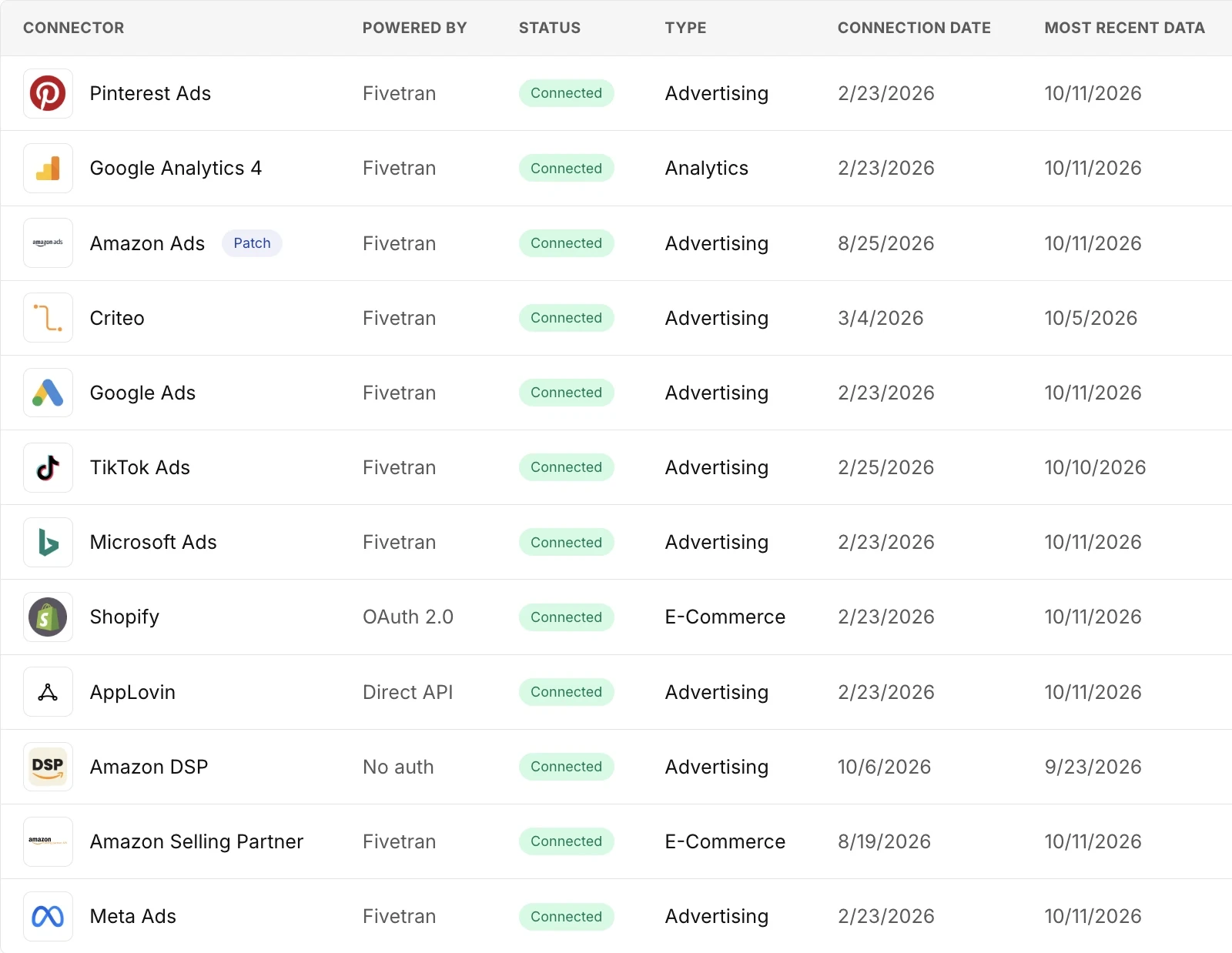
To check your data, read two columns of the Channels tab: Status tells you if the connection works, and Most Recent Data tells you the latest date that Prescient holds data for the channel. A connection can work and still have old data, so read both.
The capture shows the Channels table, with the Status and Most Recent Data columns.
How do you find a channel that stopped?
Section titled “How do you find a channel that stopped?”-
Open Data Center and stay on the Channels tab.
-
Select the Status filter, then select Needs attention.
The filter lists only the statuses that your channels have now. If Needs attention is not in the list, no channel has that status.
-
Point at the status badge of a row.
The tooltip says who must act and gives the reason.
To see each channel again, select Clear. For the fix, see Fix a channel that needs attention.
What does each status mean?
Section titled “What does each status mean?”A channel has one of seven statuses, from Connected to Not connected. For each status, see Connection statuses.
How do you find a channel with old data?
Section titled “How do you find a channel with old data?”-
On the Channels tab, select the Most Recent Data header to sort the table by that date.
-
Read the dates from the oldest. A dash means that Prescient holds no rows for the channel.
-
Look for a badge next to a date.
The badge shows on a source that you update by hand when the source has no new data for too long.
What does the badge on Most Recent Data mean?
Section titled “What does the badge on Most Recent Data mean?”The badge says how long the source has had no new data. It reads No data in {N} weeks, where the number is the count of full weeks with no new data. The badge shows only after 14 days with no new data, or 35 days for a retail channel, so the number is 2 or more.
Point at the badge to see who must act. If the line reads Action needed from you, add the latest rows or the latest file to the source. For the rule behind the badge, see Data dates and freshness.
How do you check the dates of a shared credential?
Section titled “How do you check the dates of a shared credential?”Open the Integrations tab. Each row shows the Status of the credential, the earliest Connection Date of its channels, and the latest Most Recent Data of its channels.