

Invite and manage members
Steps for an Admin to add a teammate to a workspace, pick Admin or Viewer, resend an invitation, edit a role, and take a person out of the workspace.
The Members tab of the Settings page lists each person who has access to your workspace. An Admin can invite a person, change a role, and remove a person. A Viewer sees the list and cannot change it.
The capture shows the top of the Members tab, with the Invite member button.
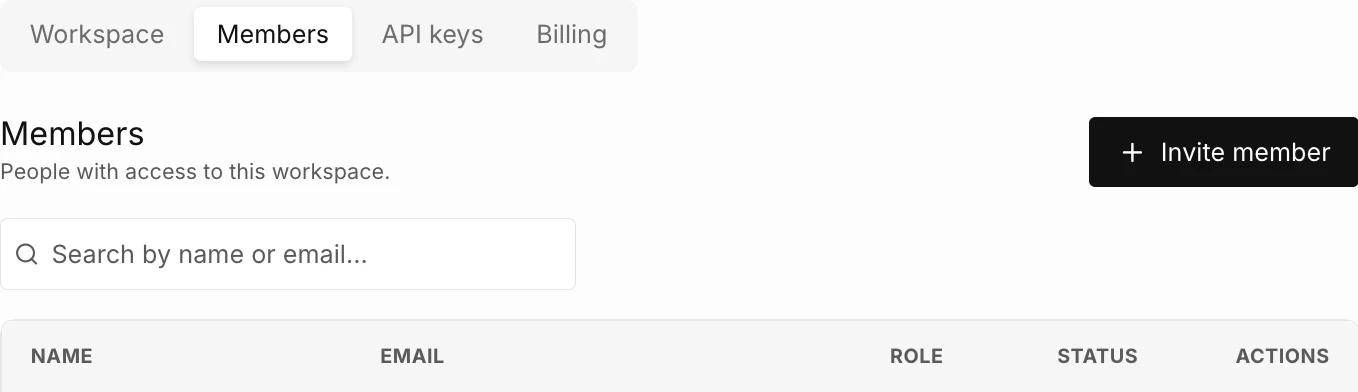
To open the tab, select the gear icon in the top bar, then select Members.
How do you invite a teammate?
Section titled “How do you invite a teammate?”-
Select Invite member.
-
Type the First name, the Last name, and the Email of the person.
Each of the four fields of the dialog is required.
-
Select a Role: Admin or Viewer.
An Admin can manage the workspace. A Viewer cannot. See Roles and members.
-
Select Send invite.
The product shows Invitation sent. and emails the person. The person has access to the workspace from this moment and appears in the list with the status Invited until the first sign-in.
A person without a Prescient AI account gets the email You’ve been invited to Prescient AI. A person who has a Prescient AI account gets the email Your Prescient AI sign-in code, not the invitation email. Tell the person to expect it. See Emails from Prescient AI.
The invited person does not need a password. The person signs in with a sign-in code, or sets a password from the sign-in page. See Sign in to Prescient AI.
If the person is already a member of the workspace, the product does not send an invitation and tells you so.
How do you send an invitation again?
Section titled “How do you send an invitation again?”-
Find the row of the person. The Status is Invited or Pending.
-
Open the actions menu at the end of the row.
-
Select Resend invite.
The product shows Invite re-sent.
How do you change a role?
Section titled “How do you change a role?”-
Open the actions menu at the end of the row of an Active member.
-
Select Edit role.
-
Select Admin or Viewer.
-
Select Save changes.
The product shows Role updated.
How do you remove a person?
Section titled “How do you remove a person?”-
Open the actions menu at the end of the row of an Active member.
-
Select Remove.
-
Read the confirmation, then select Remove.
The confirmation says that the person loses access to the workspace at the next sign-in, and that the account and the other workspaces of the person do not change.
Why can you not change or remove a member?
Section titled “Why can you not change or remove a member?”- The row is your own. You cannot change your own role or remove yourself. A different Admin must do it.
- The person is the last Admin. A workspace must keep one Admin or more. Make a different person an Admin first.
- The person has not signed in yet. A row with the status Invited or Pending has only Resend invite. Edit role and Remove appear after the person is Active.
- You are a Viewer. Only an Admin sees Invite member and the actions menu.
- Single sign-on manages the workspace. Make the change at your identity provider.
How do you find a member in a long list?
Section titled “How do you find a member in a long list?”Type a name or an email in the search field above the table. The table shows 15 members on a page.
For each message of the Members tab, see Roles and members.