

Data Center
What Data Center is for, what each of its three tabs holds, who can change a connection, and which guide to read for each task.
Data Center is where you tell Prescient which channels to measure and where you connect the data of each channel. The page also shows the state of each connection, how recent the data is, and the tactic of each advertising campaign.
The capture shows the Channels tab, with the toolbar and the table of channels.
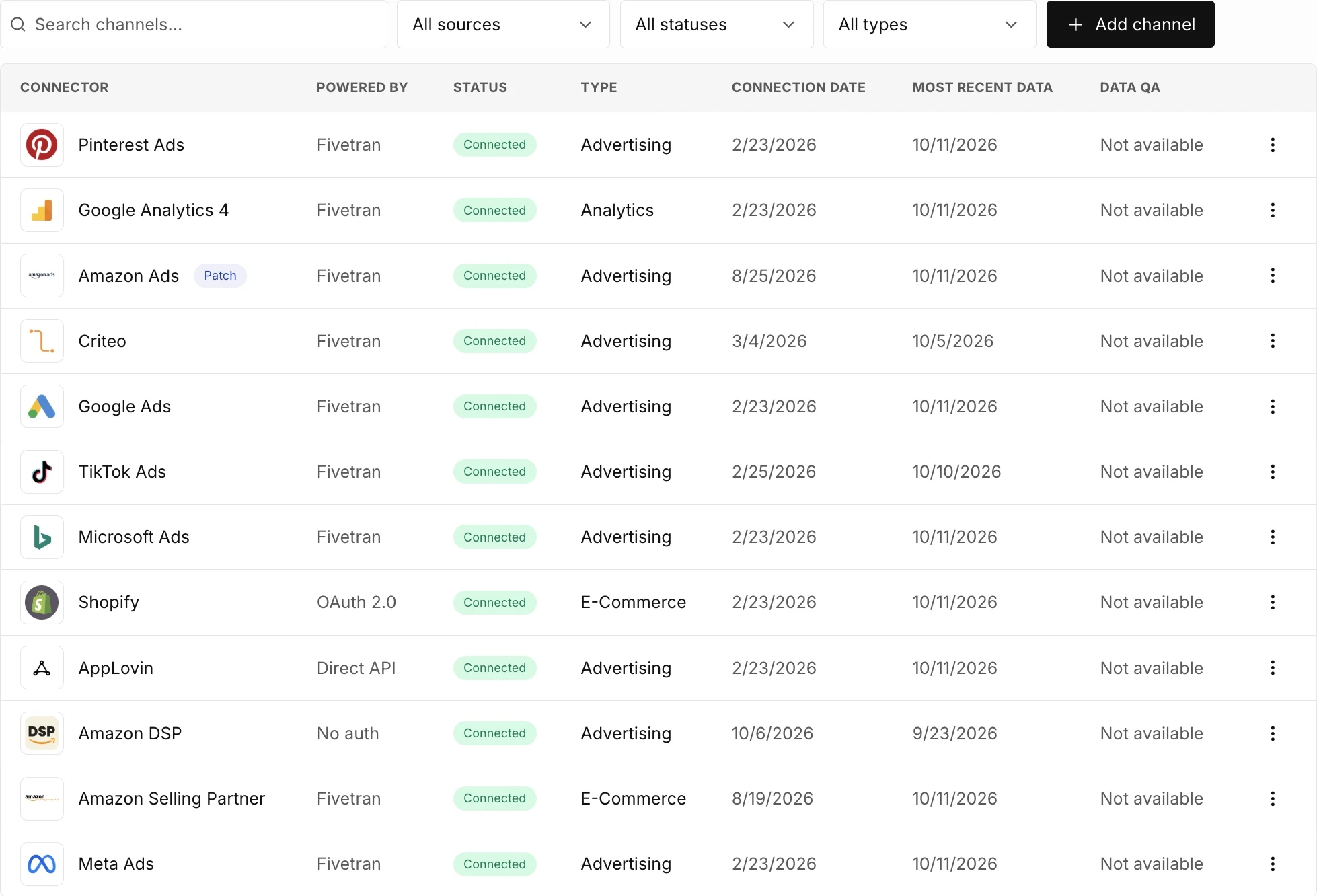
To open Data Center, select Data Center in the sidebar.
What do you do in Data Center?
Section titled “What do you do in Data Center?”The diagram shows how the data of one channel reaches your reports. You add the channel, you connect it, Data Center shows its status and its dates, and you label its campaigns.
- You addChannelA platform, a store, or a media type that you measure. A new channel has the status Not connected.
- You connectConnection methodHow the data arrives: a hosted connect card, a sign-in with the provider, Google Sheets, or a warehouse or file integration.
- Data Center showsStatus and datesThe state of the connection, the date of the most recent data, and the Data QA approval.
- You labelTacticsA tactic for each advertising campaign, so that Attribution can group campaigns by tactic.
What are the three tabs?
Section titled “What are the three tabs?”The page has three tabs. The Channels tab opens first.
| Tab | What it holds |
|---|---|
| Channels | The channels that you measure, with the status, the dates, and the actions of each channel. This tab opens first. |
| Integrations | The shared credentials for data that you supply from BigQuery, Snowflake, SFTP, or Azure Blob Storage. |
| Tactics | Your advertising campaigns, each with the tactic that you give it. |
The column for the name of a channel has the header Connector. These docs call each row a channel. For the three terms that the page uses, see Channels, integrations, and connection methods.
Who can change a connection?
Section titled “Who can change a connection?”An Admin and a Viewer can each open Data Center and read each tab. Only an Admin can add, connect, or remove a channel.
| Action | Role | Notes |
|---|---|---|
| See the tabs, the tables, the statuses, and the dates | Admin and Viewer | An Admin and a Viewer can each read Data Center. |
| Label campaigns with tactics and save the labels | Admin and Viewer | The Tactics tab lets each person stage and save tactic labels. |
| Copy a setup link | Admin and Viewer | The link opens the setup dialog of one channel. The person who opens the link needs an Admin role to connect the channel. |
| Add a channel or an integration | Admin | Add channel and Add integration show only for an Admin. |
| Connect, reconnect, or change the credentials of a channel | Admin | The row menu shows for each person. For a Viewer, the setup dialog opens, and Data Center refuses the change with a permission message. |
| Use the Manage menu of a hosted connect card: sync, pause, resume, or disconnect | Admin | A Viewer who uses an item gets a permission message. |
| Start a sync, add a data patch, or remove a channel | Admin | The row menu shows for each person. A Viewer who uses an item gets a permission message. The Data patch dialog opens for a Viewer, and Data Center refuses the save. |
| Add, rename, or delete a custom tactic | Admin | Manage tactics shows only for an Admin. |
| Confirm or flag numbers during onboarding | Admin | A Viewer sees the numbers and a line that says an account admin must review them. |
What does Data Center show during onboarding?
Section titled “What does Data Center show during onboarding?”Until your onboarding is complete, the Data Center address opens guided steps and not the three tabs. The steps take you through the same work: add your channels, connect each channel, then check the data. See Complete onboarding in Data Center.
Which channels can you connect?
Section titled “Which channels can you connect?”The list of channels that you can add depends on your account, and the list changes over time. To see the current list, an Admin can select Add channel on the Channels tab. The guides that follow give the steps for each connection method.
These docs do not have a setup page for each platform yet. The setup dialog of a channel in Data Center has the instructions for that channel. The earlier help center also has a page for each platform, with the steps in the account of the platform.
Next steps
Section titled “Next steps”- Add a channel: select the channels that you measure.
- Connect a channel: give Prescient access to the data of a channel.
- Set up shared credentials: connect BigQuery, Snowflake, SFTP, or Azure Blob Storage one time for many channels.
- Check status and data freshness: find a channel that stopped or that has old data.
- Fix a channel that needs attention: reconnect a channel or correct its data.
- Label campaigns with tactics: group campaigns for Attribution.
- Add a data patch: add or correct rows of a connected channel from a Google Sheet.
- Remove a channel: stop a channel or change its connection method.
Reference
Section titled “Reference”The reference pages of Data Center are in the Reference tab. Each page lists the exact labels, options, limits, and messages of one screen.
- Channels and Integrations tabs: the columns, filters, and actions of the two tabs.
- Connection statuses: each status of a connection, and the messages that go with a status.
- Data requirements: the columns that each type of channel needs when a workspace supplies the data.
- Tactics reference: the Tactics tab: toolbar, columns, rules, messages, and the built-in tactics.
- Roles and permissions in Data Center: the actions of an Admin and of a Viewer in Data Center.
- Data Center messages: each message of Data Center, by the place where it shows.
For the meaning of a term, see the Glossary.