

Prescient AI
What the first screen of the product shows, what you can ask in the chat, and which guide to read for each task.
Prescient AI is the screen that opens when you sign in. It tells you the state of your data and your models, shows the budget recommendation of the day, and answers questions about your marketing in a chat.
The capture shows the daily recommendation on the Prescient AI screen, with the Build this plan pill below it.
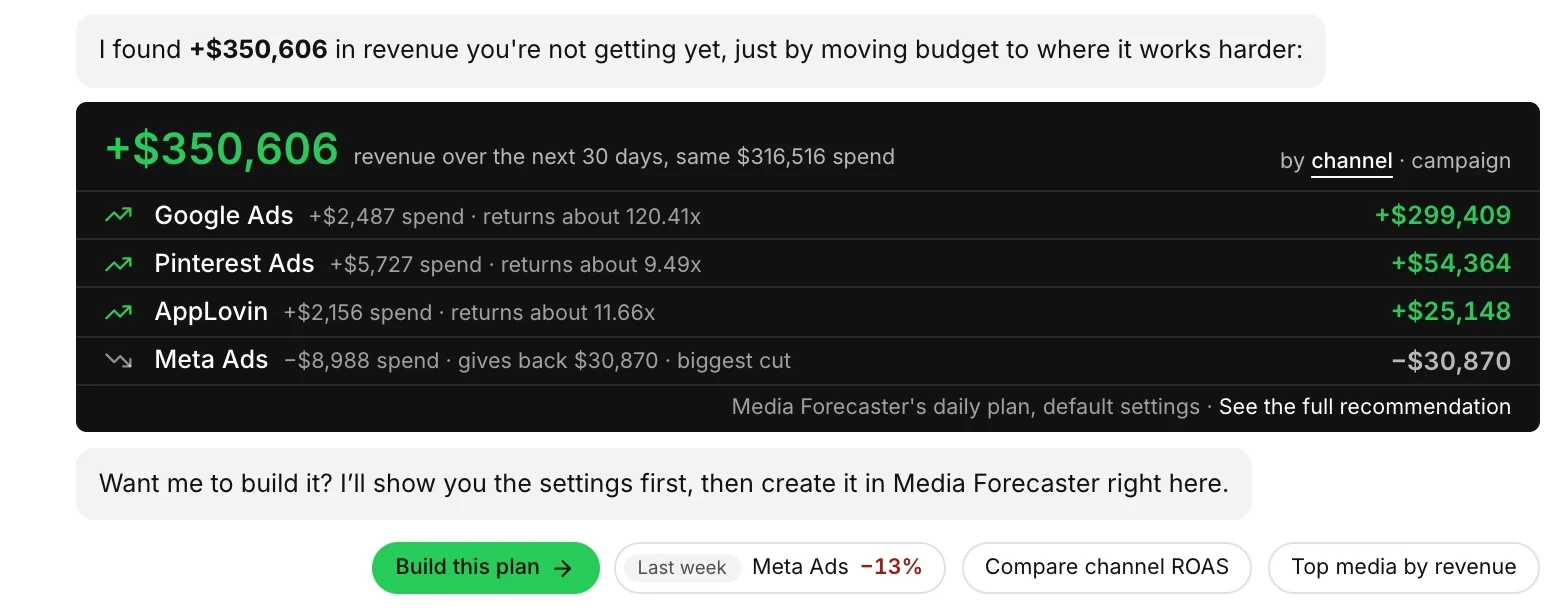
To open Prescient AI, select Prescient AI at the top of the sidebar, or select the logo.
What does the screen show?
Section titled “What does the screen show?”A new chat starts with a short summary of your workspace, written as a conversation. The summary is built from your data by fixed rules, so it shows the same facts as the other pages of the product.
| Part | What it shows |
|---|---|
| Greeting | A greeting with your first name and one line on the state of your data. |
| Connection rows | One row for each broken data connection that you can repair, with the buttons Why? and Fix in Data Center. |
| Notes on connections and models | A short note for each broken connection for which the product has no fix on your side, and for each model that did not complete its last run, is behind, or has no modeled data. |
| Recommendation card | The gain that the daily Media Forecaster plan found, the rows that gain from more spend, and the row with the largest reduction. The card shows only when the plan found a gain. |
| Closing question | An offer to build the recommended plan, or a question about what you want to look at. |
| Reply pills | One row of questions that you can send with one tap. |
| Message box | The field where you type a question. |
The parts that you see depend on your workspace. If the screen finds no broken connection and no model with a problem, the greeting says that your data connections are healthy and that your models are running normally. The screen then has no connection rows and no notes. If the daily plan found no gain, the screen has no recommendation card.
What can you do from the screen?
Section titled “What can you do from the screen?”- Read the recommendation. The card shows how much more of your outcome the daily Media Forecaster plan expects from the same budget or a changed budget, and which rows gain. See Where the daily recommendation comes from.
- Build the plan. Select Build this plan to put the recommendation in the chat as a plan that you can change and run. See Build the recommended plan.
- Repair a connection. Select Fix in Data Center on a connection row. See Fix a broken connection.
- Ask a question. Tap a reply pill or type in the message box. See Ask a question.
Buttons and pills on the screen
Section titled “Buttons and pills on the screen”| Button or pill | What it does |
|---|---|
| Why? | Sends a question about the broken connection to the chat. The answer explains the cause and the fix. |
| Fix in Data Center | Opens the setup of that connection in Data Center. |
| Build this plan | Puts the recommendation in the chat as a plan that you can change and run. |
| Compare channel {efficiency} | Asks for a comparison of the efficiency metric of each channel. A workspace that reports by tactic sees Compare tactic {efficiency}. |
| Top media by {outcome} | Asks which media produced the most of the outcome. |
A word in braces stands for a value from your account or your plan.
What can you ask?
Section titled “What can you ask?”Prescient AI reads the data of your workspace to answer. You can ask about your attribution, your reported performance, your models, the state of your data, and your Media Forecaster plans. You can also ask how the product and the models work. An answer can contain text, a chart, a table, or a view from Attribution or Media Forecaster.
For the full list, see Chat reference and Visuals in an answer.
A plan that you build in the chat is a Media Forecaster plan. To set up a plan with each setting in your own hands, see Create and run a plan. To read the result of a plan, see Read plan results.
Who can see your chats?
Section titled “Who can see your chats?”A chat is the live conversation on this screen. A chat is private. Only the person who started a chat can open it. To show a conversation to your team, save it to the Library as a shared item. The copy in the Library is a saved conversation.
Guides
Section titled “Guides”Reference
Section titled “Reference”The reference pages of Prescient AI are in the Reference tab. Each page lists the exact labels, options, limits, and messages of one screen.
- Chat reference: the Prescient AI screen and a chat: buttons, status lines, messages, and limits.
- Visuals in an answer: the charts, tables, saturation curves, and plan results that an answer can contain.
- Plan in the chat: the plan card and the run card: buttons, statuses, messages, settings, and rules.
For the meaning of a term, see the Glossary.